Skip to content

Category: Tools and Technology

New Things, a Round-Up

There have been quite a few new (or new-to-me) things to experiment with lately. Of course, this directly coincided with the ramp-up for Fall term, so I haven’t done very thorough explorations. But here’s what I’ve fired up at least once lately.

  • Ubiquity
    The link will take you to information about this Firefox extension. I don’t normally watch videos online (I know, I know, but my connection at home isn’t fast enough to make the experience pleasant), and this one started off cheesy, but it got interesting fast. I’d love to see a set of commands for libraries that I could subscribe to. Searching the catalog, proxifying stuff, citation generation, open URL resolving… and that’s just the stuff that we can already do using existing tools. It seems like the possibilities for on-the-fly mashups are almost limitless.
  • DragDropUpload
    This is another Firefox extension that I just found and LOVE. It lets me drag a file onto the upload dialog box for things like my email, and it’ll fill in the file path for you. None of that annoying stuff like clicking “browse” and then navigating through your computer’s file structure. So Easy.
  • EverNote
    I’ve been using Evernote for years, but the new version is significantly different. I’m not a fan of the rate and number of upgrades it goes through (really, do you want to emulate iTunes that much?), but it works on my iPod Touch, it captures and interprets screen shots (yes, interprets, as in, reads the words in an image and lets you search them later), and is generally pretty slick.
  • Remember the Milk
    Other people have been using this for a while, so it’s not really “new,” but I hadn’t used it before, so it qualifies for this list. I have a love-hate relationship with task lists of any kind because I usually don’t list out tasks in great detail, preferring to work toward an ultimate goal rather than concentrate on the bits and pieces. Anyway, for now, the Gmail-integrated version seems to let me do my minimalist kind of listing in a way that makes sense for me. The main web site annoys me (too many ways of selecting tasks to modify them, none of them easy… check boxes, roll-overs, direct clicking… everything seems too dynamic to actually let me just get in and change a date), but the gmail integrated list is great.
  • Google Chrome
    This is a brand new web browser from Google (alpha release, PC only). It has potential, but it’s not at a place yet where I can use it comfortably. It doesn’t play nicely with the college’s CMS. It also doesn’t handle extentions, and I love my Firefox extentions. Most specifically, it doesn’t handle adblock (not surprising, considering Google’s reliance on ads). Not having adblock is an education, let me tell you.
  • Digsby
    My co-worker uses this as his chat aggregator. Since Meebo has been on the fritz a lot lately, I downloaded it and use it when Meebo is down. I like it well enough, but when Meebo is up (which is more often this week than last, thankfully) I’m there already anyway, so I’m likely to stay there.
  • WorldCat Copyright Evidence Registry
    I’m on the campus copyright group, so this caught my eye immediately. It draws on OCLC’s collected information about the books held in thousands of libraries, and highlights the information that’s relevant for copyright research. Ideally, people will start adding more and more copyright-relevant information to these records.

What have I missed?

2 Comments
Drooling over SOPAC – Wondering about Its Inner Pig

I was going to write about scratch paper today (really, I was), but that can wait for another day. Today I’m thinking about Darien Library, Drupal, and John Blyberg’s SOPAC (Social OPAC).

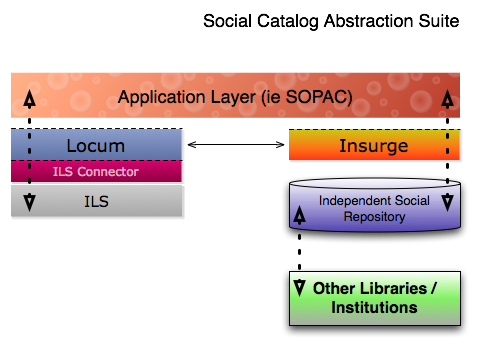
A year and a half ago, when he released the first version of the SOPAC for the Ann Arbor District Library (here’s his blog post), Blyberg’s extensive customizations were definitely cool, definitely innovative, and definitely had potential. He was working hard to put lipstick, a wig, and a dress on his pig. Well, now he’s covered the pig altogether. I won’t get into details (mostly because I only barely understand them myself), but he has coaxed his Drupal-based web site to pull information from their ILS rather than pushing the searcher into the ILS’s environment.

Other people have tried to insert new interfaces between their ILS and their patrons with more or less success, but I think Blyberg has just shown us an example of this type of project that not only works well (drawing on information from the ILS, from a local database of user-generated content, and potentially from a much larger database of user-generated content from other libraries), and is ILS-agnostic, butthat also looks good.

Here’s the diagram he uses to explain where all the information comes from:

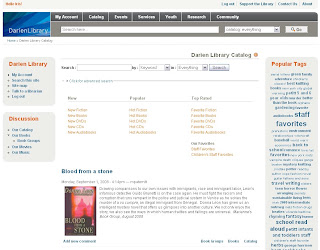
And here’s what the catalog looks like (notice the juicy tags on the left):
When you do a search, results appear in the main content area of this same screen, fully themed to match the site. So beautiful!

To say I’m jealous is an understatement. If we can’t bring ourselves to migrate ILSs, I want something like this. But I do have two reservations: this still requires the discovery layer to harvest and store information from the ILS, and that pig is still under there somewhere. As far as I can tell, the ILS is still locking down untold treasures in the form of data that catalogers have worked so hard to include in our records and it’s preventing us from exploiting that data fully. An actual relational database as the foundation for bibliographic information would make me so very happy. Still, this is really really exciting. I can’t wait to see if other libraries pick up this open source software and continue to develop it further.

Leave a Comment

Linking to WorldCat in Reference Emails.


So here’s the thing. Like many reference librarians, I use WorldCat all the time. And like many reference librarians, I use the FirstSearch version a lot for advanced features and more seamless integration with our local collections than WorldCat.org can offer. For instance, I love the “Advanced Options” under “More Like This” that lets me pick and choose which parts of the metadata were relevant to me and do a more advanced search on just those elements. And sure, the FirstSearch display is a little overwhelming, but part of what makes FirstSearch good for professionals is the huge amount of information displayed for each record. We’re used to the display, so it’s not a problem for us, and often I skim through all that information and learn a whole lot about an item in a very short amount of time. Besides, my eyes are trained to take in what I want from that interface and leave the rest. I know where on the page the OCLC number lives, for example, so I only look at it if I want to.

One thing it doesn’t do well, though, is let me link to a specific record. I can’t send a link to a student and say “Here, this is the journal I was telling you about.” I can do this at WorldCat.org, though, and that’s a much better interface for students and faculty anyway. I wish there were a “link to this record” in FirstSearch, or at least a “View this record at WorldCat.org,” but since there isn’t, here’s what I do.

  1. Do all my behind-the-scenes advanced searching in FirstSearch (when appropriate).
  2. Find what I’m looking for.
  3. Do a little happy dance in my chair.
  4. Copy the OCLC number.
  5. Open a new tab and click the bookmark I’ve names “WorldCat Link Base.” This contains the base of WorldCat.org’s permanent URL. http://www.worldcat.org/oclc/
  6. Paste the OCLC number onto the end of that URL and hit enter.
  7. Et Voila! Stable URL to the bibliographic record of whatever-it-is I wanted to send to somebody, complete with a friendly interface.

The trick comes when they’re off campus and don’t have pre-loaded links to our Interlibrary Loan system. I wonder if it’d be possible to go through our proxy server for that. If so, I’ll have to change my link base… Hmm…. things to ponder. And wouldn’t it be nice if I knew javascript and could make a bookmarklet that would do that to OCLC numbers for me, and maybe copy the full stable URL to my clipboard?

6 Comments

These are a few of my favorite things

I found myself listing my three favorite e-resources today. Usually I have trouble coming up with my favorite of anything, but these three popped into my head with little effort.

Ulrich’s
I hate trying to figure out where an obscure serial has been indexed, but Ulrich’s makes this easy (most of the time). But even beyond that, I absolutely love it for solving a major problem for my students. For the last two years, I’ve taught this as a cheat sheet of “print sources.” I had the hardest time coming up with an easy way to explain how to tell if what you’ve found online (on the free web or through our bibliographic databases) counts as a “print source” when print vs online is becoming a more and more murky distinction every year, and really makes no sense at all to students (or librarians, really). Students were paralyzed thinking they couldn’t use eJournals because their professors had banned “web sources,” and professors wondered why their students were using out-of-date and only-barely-relevant journal sources in their papers. It was because their poor students had been confining themselves to our print journal collection, which is only a fraction of our total journal collection. So now I get up in front of a class and show them the cheat sheet. If you can find a publication name (and I show them how to hunt one down), look it up in Ulrich’s. If it is listed, it counts as a “print source.” Problem solved.

OED
I love word histories, and this is the most comprehensive dictionary of word histories. Ever. I don’t often have much call to use it in my day-to-day work, but I love it for all those late-night “I wonder when we started using ‘research’ as an intransitive verb” moments I have. It has also solved many a word squabble in my family (which has at least 4 discussions about word usage, etymology, or relationship over the dinner table each week).

MLA International Bibliography
I love this because it’s such a treasure-trove of articles, and (please don’t laugh) because it’s incredibly quirky. I know that we’re supposed to love it when students can use resources on their own. You know… usability and stuff. But this thing is a bear to use well, and I’m pretty comfortable with it, which makes me feel useful. And I love feeling useful.

3 Comments

Free Book Covers for Libraries!!!

Way back in the day, we got all excited when people (Tim Spalding among them) started working on the idea of an open repository of book covers. Wouldn’t it be nice, we thought, if we didn’t have to pay for these things, or follow Amazon’s restrictions about where images had to link.

Well, today Tim and LibraryThing have made that dream come true, or at least begin to come true. He lays out all the details (how to do it, what you’ll get, and what you should know before getting started) in this blog post.

Libraries of the world, Rejoice!!!

[Update 8/12: They raised the limit on the number of covers you can pull in per day.]
[Update 8/13: The LibraryLaw Blog thinks about the copyright implications of LibraryThing’s project. Don’t worry, Mary doesn’t slam the project. She just wonders about it, and presents us with section 113(c) as the possible best exception to exclusive rights for LibraryThing’s purposes.]

Leave a Comment

Ooohing and Aaahing at the Universe

I love Google Earth. I enjoy zooming around and looking at places I’ve been or places I’ve heard of and especially places I’ve lived. But today I learned that there’s a similar program for the Universe. That’s right, nebulae and solar systems, and planet surfaces. Fun stuff!! It’s called World Wide Telescope, and it’s a free download. And so, because it was free and very very cool, I downloaded it and zoomed around the universe for a while, peeking under Neptune and into the Milky Way, prodding Venus, and spinning Mars around a crazy axis.

I sure hope some student needs something like this sometime and asks me about it at the reference desk. That way I can count what I did for the last 20 minutes as work.

p.s. Contrary to it’s About page, I don’t think this counts as a Web 2.0 tool, no matter how cool and shiny. For one thing, it’s not on the web once you download the application and start zooming. But that’s just me picking nits.

Leave a Comment

Hello World

You wouldn’t know it to look at this blog, but I’ve really wanted to write more here lately. When I started writing this thing, I could never have predicted how much I’d grow to love the act of writing (I typically hate writing and am embarrassed by it, which you’d probably never know seeing as you mostly only know me through writing, which seems like the biggest oxymoron to me and makes me giggle a little inside every time I think of it). But then, I kind of stopped writing very much here in recent months.

It’s not for lack of things happening or anything like that. As far as I can tell, it started with a sudden surge in readership (which made me suddenly quite shy), coupled with extra-crazy-busy schedules, all of which coincided with my starting to work on projects with people that I didn’t think would be comfortable with their work being blogged. I also had a 6-month slump in energy, which didn’t help any of this stuff.

But I don’t think that’s all of what’s changed for me. I think that fundamentally, this space has changed. For one thing, I’m not a brand new librarian any more, no matter how much I know that I still have a world of expertise to acquire. I’m not constantly figuring out what my place is in this profession like I was when I started writing here. But more than that, like Dorothea I’m finding that changing context is changing everything, and that I’m trying to figure out either how to make this back into my living room or how to come to terms with the fact that it’s not my living room. All of which means that I’m kind of inventing a new purpose and context for this space as I go along. It’s turned far more essay-ish than it was before, with far fewer links, and I’ve felt more compelled to have “complete thoughts” than I used to. And I’m not sure if that’s good or bad or just different, or if I like it or not, but that’s what’s happened.

I’m hoping to step back into this blog and fit it to myself again. I really do miss the burning desire to get home every night and write something. And while I’ll probably never write every day, I think there’s hope that I’ll figure out my contexts, especially now that I’ve taken some time off this summer and have started to feel a little more energetic.

2 Comments

The iPod Touch, One Work Week In

Well, I’ve had a full work week to bond with my new toy, and let me tell you, we are now attached at the hip. It does everything I need it to do and more (unless I’m out of wireless network range, but even then I can see my calendar thanks to the 2.0 version of the firmware). Since people asked me for my impressions, I thought I’d write up this list of pros and cons, and then throw in a my current list of things I had to figure out in order to make it do what I needed.

Pros:

  • pretty much everything
    It’s faster to check my calendar on that than it is on Zimbra, since Zimbra is kind of a slow-loading web app, so I end up using it when I just need to quickly check up on my appointments for the day. And since mobile calendaring was the primary goal of the purchase, I’d call the purchase a grand success. Everything else is gravy. And boy is there a lot of gravy. Email and contacts sync, too, and having web access is so handy. I can imagine taking this down into the stacks and checking call numbers and locations right there with students.
  • Apps
    I loving having Pandora Radio, Evernote, and Twitter apps with me all the time.
  • Lunch break listening
    I like the option of having music and books-on-iPod with me even at work. Sometimes you just need to get away at lunch, plug in, and forget about work.
  • Event notification
    I’ve turned off the sound effects so that it won’t let everyone in the room know when I receive an email or have an appointment coming up, but the screen still lights up and displays allerts about upcoming appointments, which I love.
  • Intuitive, mostly
    Except for the little trick about scrolling with two thumbs if you have to be on a web page that contains a scrolling text box, I never had to think about how to move around and zooming in and out of pages.

Cons (mostly minor… did I mention I love the lil thing?):

  • Battery life
    This is so far the only little electronic thing that I have to charge every day, and I don’t listen to music on it for more than 20 minutes a day.
  • Sounds without granular control
    I’d love to turn off the sounds that tell me I’ve gotten email while keeping the sounds that tell me I’ve clicked something, or that I have an event coming up. Right now, it’s all or nothing with the sounds.
  • Browser flips sideways (easier typing) but most apps don’t
    Typing while the keyboard is squished into the portrait version of the screen can be quite an exercise in precision and aim. It’s much easier when you can flip the screen to landscape orientation, but most apps don’t allow for that.
  • Can’t get to any but my main calendar in Zimbra (UPDATE: see comments)
    This may be just for Zimbra users, but there’s no way to get to calendars other than your default calendar. The web interface won’t let me leave the mobile version, which only shows the default calendar, and the calendar app only syncs with the default calendar. I’ve been in the habit of printing my default calendar to hang on my office door, but if I have to put things like doctor’s appointments in that calendar, I won’t be printing that stuff out to hang on my door. But I think that’s ok. Students and co-workers are much more accustomed to finding schedules online now, so I doubt anyone will miss it.

Things to know to make it work right (from my perspective)

  • Zimbra connection is achieved by setting up the Microsoft Exchange account options (as I noted in my previous post). Using these settings, I can let it sync wirelessly!
  • Two-thumbed scrolling gets you around on web pages that have scroll boxes in them.
  • You can uncheck “open iTunes when you plug this iPod in” for easier work re-charging (since an iPod can only sync with one installation of iTunes, and I regularly work with three to four different computers).
  • You can reorganize the icons on your main screen (as pointed out in the guide that comes with the iPod).
  • Searching google for instructions or apps or anything will go better if you search for iPhone and just realize you don’t have the phone or camera functions. Fewer people are writing about the iPhone’s lesser cousin, the iPod Touch.
  • The little plastic hook thingy that comes with the iPod is a stand. This was not obvious to any of us.
  • Bookmarking things (like google or the library catalog or google reader) is great. Placing icons on the main screen is even better.
11 Comments

New Toy


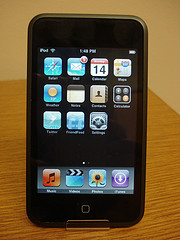
New iPod Touch
Originally uploaded by Pegasus Librarian.

I’m SO excited!!! For the last year my co-workers and I have had no mobile calendars (as I’ve written about at some length). Well, after letting us test both the iPod Touch and the newer wireless Palm, my work decided to let us choose our favorite toy… er… device. I chose the iPod Touch, and today IT CAME. I spent a few hours getting it set up with updated software, registering it with the campus wireless network, and then figuring out how to sync it with my calendar, mail, and contacts. What fun!!!!

By the way, in case anyone else is wondering how to sync Zimbra with an iPod Touch or iPhone and can’t find any documentation from either Zimbra or Apple, no, you’re not insane. The instructions just aren’t out there. What you do is:

  • make sure you have the 2.0 version of the iPod software and the latest Zimbra upgrade
  • set up a new mail/calendar/contacts account
  • select “Microsoft Exchange”
  • and then enter your Zimbra account information

After that, things should work beautifully.

4 Comments

Feeling Like a Celebrity

Everyone should be lucky enough to know a graphic artist! Just hours after I mentioned that my ultimate dream was to have a Pegasus image for my blog header, the amazing Tim Keneipp emailed me an image. I fell in love with that statue Pegasus instantly.

Of course, then came hours and hours of fighting with Blogger to make it sit right on the page (I’m sorry, Tim. I didn’t know it’d be such a hassle). But now each time I look at my blog I think about how talented and generous Tim is.

9 Comments
css.php