Well, let’s try this again. DNS confusion meant that last Friday, when I thought I was all set, I actually wasn’t. But apparently NOW I’m all set, so here’s the post that I thought would get posted last week. (Many thanks to Reclaim Host tech support for all their extremely helpful help.)
I’m writing now from my new home on a new server and a new domain registrar for the first time in my blog’s history. Up until now I’ve been happily living in my own little corner of the LIShost server, carefully tended by the wonderful Blake Carver. Sadly, LIShost is shutting down after 18 years of dedicated service to library folks. I can’t thank Blake enough for his approach to hosting, giving me as much leeway as I had the skills for, and as much help as I needed to cover those areas where my skills were lacking.
But welcome, now, to my new home, here in my own corner of the Reclaim Hosting servers. If things continue as they have begun, I think I’ll be quite happy here in my new digs. But if you notice anything wonky do let me know. I’m still unpacking and figuring out the light switches and hanging pictures, and there’s no guarantee I’ll notice everything.
If you’re like us, you have a LibGuides-based list of databases for your library, and it went down for a bit this morning. If you’re like me, this pretty much cripples you until the list is back up and running. This kind of downtime could happen no matter your platform, so if you’re like me you might also want to have an option available to get around your database list during downtime. Here’s what I came up with about a year ago and was happy to have in place this morning.
Each month I download a CSV file of our databases – LibGuides has a nifty “export all” option and I click that. Then I paste that data dump information into a hidden sheet on a Google Sheet that I’ve made available to anyone with a link. From that messy data dump, I built formulae onto a visible sheet in that Sheet (really, Google has GOT to get better about its names for apps so that I don’t have refer to a sheet on a Sheet). These formulae help me display a full alphabetical list of all of our databases, their descriptions, their base URLs (a note on that in a second), vendor, and whether or not they need proxy access from off campus. Basically all the formulae say are “if the corresponding cell on that base sheet is blank, don’t put anything here, but if there’s information there, then display it here.” It looks like this:
=iF(isblank(Raw!B2),"",Raw!B2)
Then I use a slightly fancier formula to build a proxified version of that base URL into column dedicated to off-campus access. It goes like this:
Translated, that formula means “If the cell in Column F that says whether this database needs a proxy string is blank, leave this cell blank (this just makes for a cleaner spreadsheet without a lot of error cells where the formula is there even if there’s no database listed). If that proxy cell is set to YES, then put together our proxy string and base URL, and put the resulting URL here. If the proxy cell is set NO, just put the base URL here.”
Then I hid the Proxy check column (column F) because nobody really needs to see that if they’re using the spreadsheet. I just needed it for calculation purposes. (Sure I could have referred to that proxy check cell on the base sheet, rather than bring it to the visible sheet and then hide it, but sometimes I just feel like doing things easiest way that occurs to me in the moment. Don’t judge!)
Finally, I gave this back-up spreadsheet a nicer URL: http://bit.ly/libedatabases And I posted this URL in places where librarians can find it when needed (such as our documentation for QuestionPoint cooperative librarians, our intranet, etc).
So now if our proxy server goes down (rendering our database list mostly useless), we can use the base URLs from this spreadsheet, at least from on campus or in combination with a VPN. It’s better than nothing. And if the whole database list goes down, we have access to all of our databases and their URLs from this list.
Edited to add: I forgot to mention that I’ve also built a script into Google Docs to unmerge cells. For whatever reason, exports from web-based products like Springshare tend to have random merged cells, which I don’t want. The only way I know of to get rid of these (other than looking for them all and then unmerging them individually) is via script.
So! In Google Sheets, click on the “Tools” menu and then “Script Editor” and then paste in the following:
This will look at columns A through T (you can edit that in that second line if you need to) and unmerge any merged cells.
When you paste in a new export, just click “Tools” and “Script editor” and then the little “play” arrow to run the script, and it’ll unmerge all those merged cells for you.
Exciting times here in our local libguides world! Our old look and feel was starting to feel extremely dated to us, not least because it was designed to coordinate with the library website as it looked 2 updates ago. So over the last 2 months we worked through design iterations (and, as always with big projects like this, I leveled up my css skills a bit), and this week our new look and feel went live!
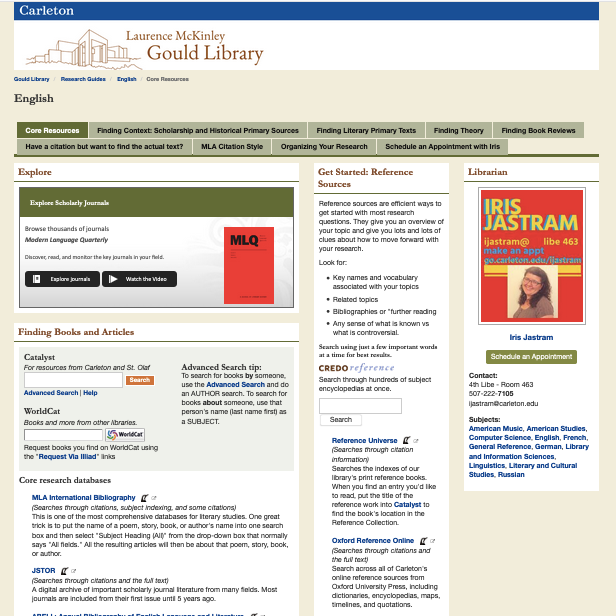
Here’s how things looked for the last few years:
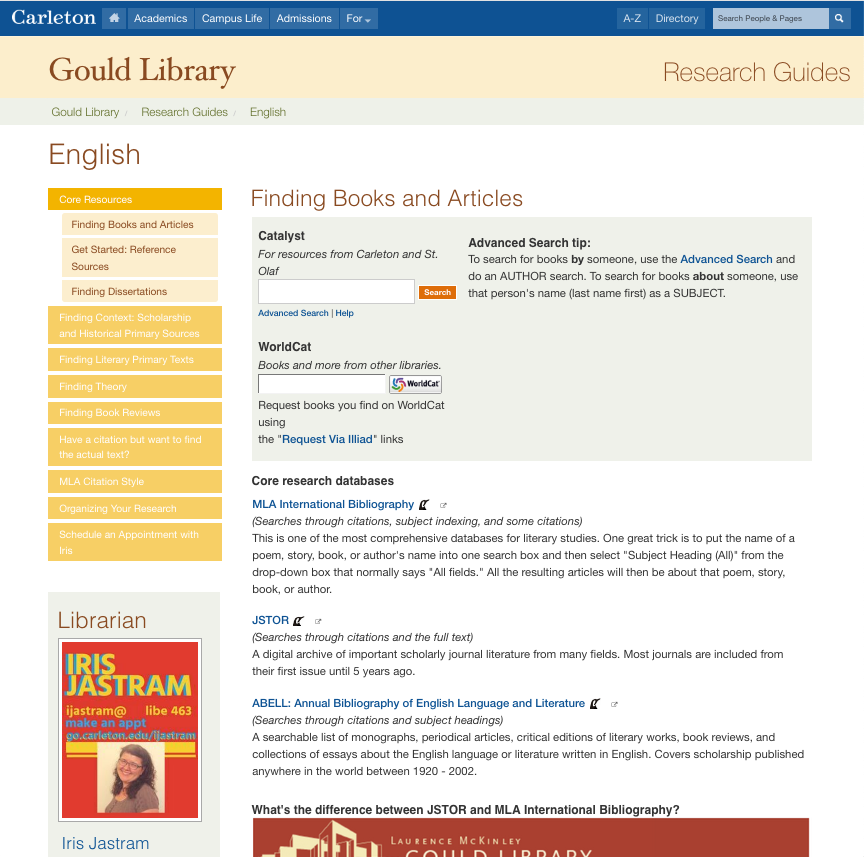
And here’s how things look now:
We’re still fiddling with minor things here and there. For example, I’m still not 100% sold on white text in the side navigation, and there seem to be an unending set of “exceptions to the rule” elements that we keep finding and tweaking. But it was great to go through an accessibility validation and have things come out looking good. And it’s also great to get a lot more design consistency with the college’s website (including a fully functional version of their ubiquitous “Blue Bar” at the top).
I also really enjoyed digging into responsive design a lot more than I have before, so the locally coded elements of our new interface are now fully compatible with all kinds of screen sizes.
As always, if you want me to provide my code, or if you notice something I should improve, please get in touch!
I’ve gotta admit. I love a good spreadsheet now and again. Maybe it’s because they aren’t the only thing I work with day in and day out, but I’m very much a fan of computers doing my grunt work for me, and spreadsheets are very much a part of that picture for me (right along with most of the other light-weight coding I’ve dabbled in).
I’m NOT a fan of using a spreadsheet just because it has columns and rows. Call me a software snob, but if all you need is a table in a document to keep a bunch of text in order, that’s not a spreadsheet. No sense using an extra tool. But if it can automate processes or do your error-checking for you — that my friends is workplace GOLD.
I’ve used spreadsheets to take conference session information as submitted by presenters and wrap each bit up in html, string the html together, and then paste the resulting html into a web page (hundreds of sessions processed in minimal time with minimal human error). I’ve used it to reconfigure 14 years of reference, instruction, and consultation statistics to make the data from various systems from our past match the needs of our new system, flipping people’s names, combining, splitting, reshuffling, and reformatting. The list goes on. If you can teach a computer a pattern, you can probably teach it to do your fiddly work for you.
Case in point: Libguides asset management.
Most of us librarians at this point use Libguides. One of its great strengths is that you can reuse “assets” (links, books, etc) from one guide to another. But over time, duplicate assets multiply like rabbits, and old unused assets clutter up your search results for that one asset you really want to reuse. So over time it becomes easier to make new assets rather than see if that asset already exists in the system. And then you end up in a vicious cycle the spirals your assets out of control and makes one of the great features of Libguides functionally useless.
So every summer I do a big ol’ asset clean-up project. I ask Springshare to delete our unused assets for me (we mere mortals can’t do bulk deletions), and then I work to knit back together all the unnecessarily duplicated assets that have spawned in the system when the librarians either make a new one that already exists or copy boxes or guides to new guides (which duplicates all the assets in the box or guide — asset management hell).
This is where the massive spreadsheet comes in. I need to find all the assets that are actually the same thing, and then map them back together so that they ARE the same thing. And the first part of this is to sort them by name. So I download a spreadsheet of all assets, plunk it into Google Sheets (easier to work on from multiple computers or share with others in the department), and alphabetize by title. But as you may know, neither Libguides nor any spreadsheet software I’m aware of is smart enough to alphabetize by the first “real” word, or to know that “US,” “USA,” “U.S.,” U. S.,” and “United States” are all the same thing. And anything with a quotation mark in front of it will go up into the non-alphabet part of the sort. And the list goes on. Alphabetizing just doesn’t cut it.
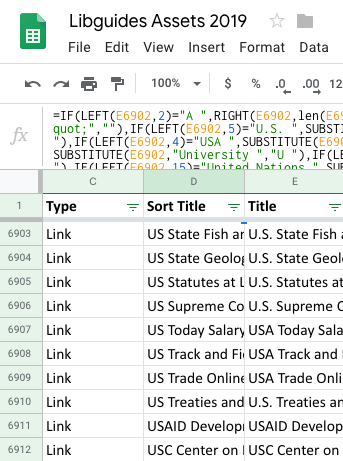
So in my google sheet, I add a column for Sort Title, and in the first cell of that column I use a formal to teach it all of the patterns that I know will be a problem with the titles in my asset list. Then I drag that formula down through all 7-9,000 asset records, and Ta-Da! Alphabetizable titles!
I’m a little nervous about sharing my formula for this because I’m a rank amateur and probably used a million IF statements where a simpler solution is possible. But hey, I’m also a rank amateur, so if you’ve never done this you can join me and then improve on what I’ve found! So… if you want to try this out, the basic pattern is “If at the left of the string in the title column you see x string, substitute x string with y string.” The other basic pattern is “If at the left of the string in the title column you see x string, delete it.” If your Title column is in column E, and you’re starting on row 2 (because row 2 is your header row). My current formula, which accounts for the patterns I’m currently seeing in my title list, looks like this:
So, it’s IF(logical statement, result if true, result if false), and in the “result if false” section, that’s where I put the next IF statement. The very last “result if false” is just “show me the full title from the title column” because by that time the title is probably just fine without alteration. Each logical statement here tests the characters at the left of the title column, since that’s what I’ll be alphabetizing on. Then each “result if true” section tells it how to transform those left-hand characters so that they’ll alphabetize properly.
So that’s my spreadsheet love story of the week! I can’t believe that last year I sat there and used successive “find/replace” searches and thought I was being efficient. Live and learn!
I’ve just started work with a team of people who are going to be redoing our library website’s information architecture. Maybe some design, but mostly the structure. So of course I do that thing that I do so often and try to figure out how to think about the problem at hand before actually diving into the problem at hand. And this time I seem to be doing that by reading about architecture.
I’m not the first one to do this, by any means. There’s a great talk by Dr. Molly Wright Steenson from this month’s MinneWebCon that lays out lineage of current artificial intelligence work, including the inheritance from architecture. And her talk reminded me that this is exactly what I needed to think about again in order to think about our website structure.
So I went down into the stacks and checked out Christopher Alexander’s two most famous works, A Pattern Language and The Timeless Way of Building. These are two very very large works of architectural philosophy, so there’s no way that I’ll be able to read and apply them thoroughly to my current project, but something is better than nothing, right?
And then, on page 55 of The Timeless Way of Building, the primary claim from Chapter Four jumped out at me:
We must begin by understanding that every place is given its character by certain patterns of events that keep on happening there.
This is “the user is not broken” stated a different way. Spaces are set up, and people will behave in relatively consistent ways in those spaces depending on the affordances of the environment. If they do things we think are wrong, and especially if they do them consistently, then we have clearly set up a space that invites those events. The user was not broken; our design was broken. But Alexander’s formlation works better as an aspiration to achieve rather than a resignation to past failures. If we can know these patterns that environments evoke, we can design environments that evoke patters we want. If we set up a space (physical or digital) that invites the kinds of events that our community wants and needs (actions, reactions, experiences), and invites these events consistently, then that is a space that has Alexander’s “quality that cannot be named” that animates every successful design. (He goes into detail about definitions of that quality in chapter 2, but I won’t do the same here. You can go puzzle over that chapter if you want to, but my big short-hand for it all is “it works beautifully.”)
He then usefully qualifies his thesis:
This does not mean that space creates events, or that it causes them.
For example, in a modern town, the concrete spatial pattern of a sidewalk does not ’cause’ the kinds of human behavior that happen there.
What happens in much more complex. The people on the sidewalk, being culture-bound, know that the space which they are part of is a sidewalk, and, as part of their culture, they have the pattern of a sidewalk in their minds. (72, emphasis original)
And, in the same way, the patterns of events which govern life… cannot be separated from the space where they occur. (73, emphasis original)
So what are similar structural digital elements that we could switch out for “sidewalk” here? Search box? Menu? Bullet point? We have to keep in mind that in our culture, these things call on a whole network of cultural-bound events. We cannot say “well, we know that search boxes you’re familiar with when doing research are boxes that search through the full text or at least a paragraph of text, but this particular search box searches through a list of library research tools instead.” (Incidentally, this is part of what makes the MLA International Bibliography so hard to use and teach.) People will fall into patterns and perform topic searches in that search box, and they will do so over and over again. And they will wonder why our search box is broken. These patterns are patterns that we can often predict, and good intentions won’t matter if you ignore these predictions.
That said, we can help shape the patterns that happen again and again. For example, we don’t have to blindly follow our novice patrons to their best-known patterns just because many of our patrons are novices. We have to know what they expect and their habitual patterns, and also the expectations and patterns of the experts on our campus, and we have to create systems that invite useful events for all. This may mean educational events that help the novices learn the patterns that are typical of the new culture they have entered. This may involve educational events that help experts navigate evolving systems and patterns and academic cultures. But these educational events can’t happen unless we build bridges for the inhabitants of our spaces (digital and physical) from the patterns they have known to the patterns they are developing.
Alexander, Christopher. 1977. A Pattern Language: Towns, Buildings, Construction. New York: Oxford University Press.
———. 1979. The Timeless Way of Building. New York: Oxford University Press.
I haven’t tested it extensively yet, but Zotero has released an updated Chicago style. I see that my version of Zotero automatically updated itself to include this new style, but if yours doesn’t for whatever reason you can always load it from the Zotero Style Repository.
Meanwhile, EndNote hasn’t yet released Chicago 17, so I spent some time this week developing that. Here’s a zip folder with an EndNote style for Notes & Bibliography and another style for Author-Date. In the style description for each one, I’ve also added some help text for how to manage a couple of things that weren’t very straightforward in the EndNote style coding. Feel free to use, share, and improve upon these styles.
As always, if you notice something that can be improved or that I got wrong, please let me know!
A few times this summer my work with libguides left me turning to people for help with what felt like basic stuff, and each time the answer was “Oh, here are 2 lines of javascript that’ll solve your problem.” So I got jealous. I want to be able to know when two lines of javascript will solve all my problems, and what two lines those might be. Plus, I hate bothering busy people for tiny stuff.
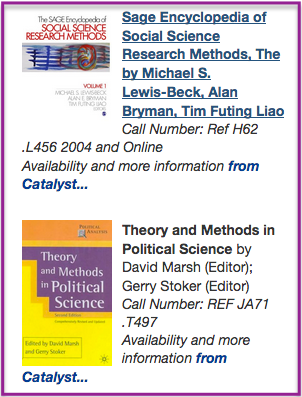
Meanwhile, the other librarians and I were trying to figure out a clear and consistent way to link to catalog records from our Book assets in Libguides. Sure, there’s a URL field there, but over and over we’ve seen people think that if the title is a link, that means that the full text is behind the link. So they open the catalog, see what is clearly information about a book, and then proceed to use the catalog’s search bar to “search inside the book.” Then they’re confused when they just get results for more books. So they open their book again, and try it again. Endless frustrating loop. Also, we actually do have quite a few ebooks, so it’s extra confusing when some of those linked book titles go to ebooks and some go to catalog records. Not a great usability scenario.
So I thought “Well, we can just put a little HTML link in the book’s description box that makes it clear that this link, unlike the title link, leads to a catalog record. But 1) writing a bunch of HTML by hand can lead to errors, and worse, 2) not everyone is comfortable writing HTML by hand. But we did really want a second URL field with clarifying language, reserving linked titles for ebooks.
This, then, was the perfect project for me to learn Javascript. What could possibly go wrong? Here are my two methods of teaching myself from scratch:
W3schools (especially fiddling with their “try it” setups to see if I can figure out how and why things work)
Googling everything I want to do, one thing at a time, and hoping someone else on Stackoverflow has asked a similar question, and that whatever answers they got there will work if copied and pasted into my code.
I started thinking I could get away with making a bookmarklet, but since it turns out that browsers generally don’t allow you to access your clipboard except in very limited circumstances, and that many websites (including our catalog and libguides, the only two sites I cared about) don’t let me inject HTML to build a popup form to get around the lack of access to the clipboard, I finally had to admit that a bookmarklet would not work for me.
So then, according to the developers who helped and encouraged me along over on Mokum, it was time to start thinking about coding a browser extension. It took me a couple of days to admit this to myself because it sounded scary and complicated, but eventually I took this tutorial and its sample files by the horns and dived in. Along the way I got valuable hints from a friend to pay attention to the order of operations (at this point that means I just try things in various orders, but some day soon I hope to actually know what I’m doing), and to use the built in “Inspect” console in Chrome to debug the Javascript (which until now I’d only thought about as being a tool for HTML and CSS stuff).
And today, nine days later, I published my extension to Chrome and to Firefox! Now adding links to catalog records is quick and consistent for everyone in my department. (And if you want the unpacked files to mess around with, here you go, though I must warn you that I am NOT an expert so there may be stuff in here to make an expert weep, or laugh. Any and all suggestions for improvement are welcome.)
At this point I’m only just barely good enough to try lots of things in hopes that one of the things will work, and then to move on to the next thing. And I’m still very hampered by only having the vaguest idea what’s possible and (almost more important) what’s impossible. But who knows, maybe sometime soon I’ll have another tedious workflow that I can speed up by getting my computer to do a bunch of the tedious part for me. The world is my oyster!
As you probably figured out from my last post, it’s been a Libguides kind of summer around here. We updated all our links to our catalog, got things ready to publish the Libguides databases list rather than our old other-CMS databases list, changed all internal links to database lists, migrated from WorldCat on FirstSearch to WorldCat Discovery links, and did the annual (painful) clean-up of the assets inventory (merging duplicate assets, deleting un-mapped assets, fixing wonky assets…).
For me the most fun part, though, was updating the custom page layouts, custom terminology, and custom CSS. And I thought I’d share my work in case it’s useful to others.
Custom Page Layouts
Under Admin > Look & Feel > Page Layout, I’ve customized several of our page types. If you want the code for these just let me know and I’ll share.
Guide pages now don’t display that tab name after the Guide name, plus various small tweaks.
We don’t use the system-generated homepage and instead made a guide to use as a custom home page, entering its URL into the redirect URL spot under “Homepage boxes/Redirect.”
For Subject Pages, I flipped the order of the tabs so that people are presented first with useful databases for the topic and then with useful guides for the topic. And I completely hid the tab for blogs because we don’t have any of those and don’t plan to.
For Database A-Z pages, I changed things up so that our QuestionPoint chat widget could sit in the upper right-hand corner, and to hide elements we didn’t want.
Custom Terminology
I’d thought this was only to set the system language, like “English,” but no, there’s a whole section where you can change system-generated labels for things. Go to Admin > Look & Feel > Language Options, and then click on the Language Customization section. Behold, a whole trove of system language that you can tweak to match your local terminology.
Custom CSS
Here’s my custom CSS as of July 2017. You can feel free to take or modify whatever you like from my style. (If you’ve never done this before, just copy and paste everything in my text document into the code box in Libguides under Admin > Look & Feel > Custom JS/CSS and then delete bits or tinker with bits as you like. I use w3schools with wild abandon as I cobble together my amateur CSS.)
My guiding principles
Make it so that the librarians can let the CSS do most of the formatting work for them.
Clean, uniform looking lists of databases, assets, system-generated lists (widgets), etc, so that no matter how a librarian decides to add pointers in their guides, things will look relatively uniform.
Allow for the flexibility that our librarians really value. We value uniformity when that helps the users and when it helps us re-use each other’s assets, but we value the ability to make guides work for a variety of contexts and not tie one librarian to another librarian’s style (though I’m the CSS overlord, so my style is a little more equal than other people’s styles, I guess).
This is also why we have a Style Sheet for librarians who create guides, with the idea that the more specialized your work, the more you can do whatever you want, but if you’re doing stuff that others might want to pull into their own guides, some uniformity is useful. (It’s also a handy place to dump little “how to do this complicated thing” tutorials.)
What my custom style sheet does:
Since the Libguides CSS editor doesn’t seem to allow me to comment out my code, here’s some narration about what my code does.
First (from the line starting at “body” to the line starting at “li”), I lay down some ground rules for fonts and colors, especially changing links to be bolded rather than underlined, which worked better in our style.
The next several lines make the various kinds of things you can put into a box in libguides conform to the same style rules (so that book elements look similar to database elements or link elements, etc), and also hides some elements that we considered less necessary and more apt to contribute to clutter.
Removes bullet points and fiddles with spacing around asset lists and system-generated lists so that they’re all uniform.
Unbolds the names of guide owners under guides linked using the “guide list” feature in the add/reorder dropdown.
Makes book call numbers italicized
Hides ISBNs and publication dates in Book assets
Hides “last updated date” and number of views from “guide list” links.
The next section deals with the layout of some of the most common elements on research guides, removing shadows from boxes and setting fonts and basic styling for tabs and boxes.
The next section governs headings and block quotes – very basic stuff
Then comes four lines that clean up the Databases A-Z list, hiding the “share” buttons on database lists and hiding both the automatic search box that appears throughout Libguides and the “search within the databases a-z list” search box. This is because we have YEARS of data from our old cms showing that if there’s a search box on a page that lists databases, people enter search terms into it that make it clear that they think they’re searching within the databases. If they want to find a particular database, they use control-F on the web page instead. There was also an interesting talk at this year’s ACRL where people used eye-tracking software and found that people can’t help themselves — they’re drawn to search boxes. And if there are extra search boxes on the page it’ll just confuse the issue.
The .dont-break-out line in the CSS is a thing that librarians can employ if they need to display a very long URL and they want to make sure it won’t bleed out of its box, particularly on smaller screens. I didn’t apply it to the system as a whole because I’m not quite sure what all it’ll mess up, but on our Zotero guide I have to make it easy for people to copy and paste our OpenURL resolver link, and the thing is ridiculously long, and this was the only way to force it to wrap in Chrome. So in a Rich Text content item I wrapped the URL in a div tag that called this special class, thusly:
And now even in Chrome at very narrow browser widths the URL wraps neatly onto new lines.
The remainder of the style sheet changes the way that image gallery boxes display, making things simple and clean, and usually even readable if there’s caption text.
So there you have it. That’s what I’ve been up to in the Look & Feel department this summer.
If you work at a library that has or soon will be transitioning to the new Primo interface, and if you have research guides or other web pages that link into content from the old interface, read on because you may want to consider doing a URL updating project even though there’s an automatic redirect.
First of all, if you link to searches done in regular Primo (not the journals a-z list), those apparently don’t redirect. If you link to items from regular Primo or to Journals list items or searches, there’s a redirect but it takes a long time to resolve — about 25 seconds in my library’s configurations. Long enough for me to click a link, get a drink of water from the fountain outside my office, come back, and still wait a bit for the screen to load. (Plus it flashes through a couple of weird pages including a “zero results” page that just isn’t true.) And finally, the old Journals list didn’t have an option to search by ISSN, so many results (like if you’re looking for the journal Science) were pretty messy. The new platform does have an ISSN search, which is far more accurate for direct linking.
Given all of this, I’m updating every URL from our libguides to our catalog, both to make it resolve directly to the new interface and to have journals resolve to an ISSN search whenever possible. If you want to do something similar you can follow (or improve upon) my process.
Learn how to distinguish between old an new URLs.
The main distinguishing features of my campus’ configuration is that the old URLs contain /primo_library/ and the new URLs contain /primo-explore/ instead. In addition, there are three sub-types of URLs that might be useful to know:
Primo Query URLs (the ones that probably won’t redirect)
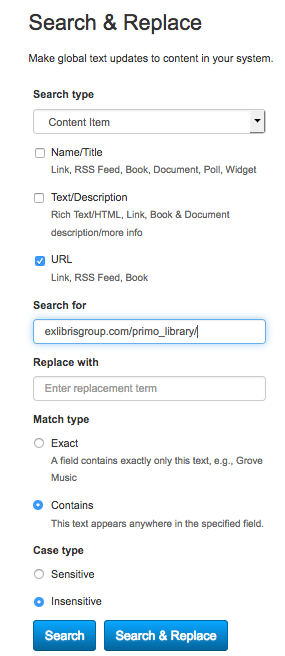
So now you can go into the Search/Replace feature of Libguides and do a search for all content items containing the URL snippet either for all of the old versions, or for each of the three sub-types of the old version, depending on your workflow.
NOTE: You cannot use the Replace feature built into Libguides because the old URLs put search terms at the end of the URL, but the new URLs put the search terms both into the middle and at the end.
So, do your search, and then select all the records Libguides pulls back for your search, and paste them into a spreadsheet. I then delete the messier/unnecessary columns so that I end up with a first column to indicate whether I’ve fixed that URL or not followed by three of the columns that Libguides generated: Asset ID, Asset Type, and Asset Title. (I used Google Sheets for this.)
If you’re like us, you’ll have several hundred links to update, all told. And obviously this will be a lot less painful if you do a project BEFORE starting this project to go through and consolidate multiple copies of links. And unfortunately there’s no automated option to do that consolidation project, either.
Have two tabs open: your new Journals A-Z search and the spreadsheet from Libguides.
Click on the link to the Asset ID to open the Libguides record for that asset
Open the asset for editing
Collect the URL and open it in a new tab – you now have two tabs that are “temporary,” the Asset and the Redirected-and-Resolved Primo tab
For journal records, open a record for the correct journal and collect its ISSN
Back in the tab for the Journals search on the new platform, search for that ISSN
Collect the URL from the new platform’s ISSN search and paste it into the Libguides asset’s URL field.
Click “Save” and close the two “temporary” tabs.
Mark the column in your spreadsheet so that you know that this asset has been updated.
For URLs that don’t need any special investigating (figuring out exactly which journal was intended or if there are special limiters invoked in the original Primo search that you need to recreate in the new search, etc) it takes nearly a minute per asset, so it’s definitely a good idea to listen to podcasts or audio books or something while you work your way through the spreadsheet.
I was recently asked to write up some best practices for groups using Zotero, and I thought I’d share them here. While the language and specifics of these practices are all Zotero-centric, I’ve done very similar things with Mendeley and EndNote as well, though they don’t have standalone notes, so you have to make a well-named citation and use its notes fields to fulfill similar functions.
First off, it is worth it to pay for storage from Zotero. There are work-arounds using Box, but that adds a layer of complexity that I have seen go wrong when, for example, you have collaborators spread all over the place and not everyone is tech savvy or has library or IT support.
I’ve also seen people register a Zotero account and then share login credentials to that account with a group. This is not a good idea for a bunch of reasons. Everyone should have their own account and then be added to a group library.
With those two things as ground work, here are some things to consider as you launch a group project using Zotero. The larger your group or longer-term your project, the more these practices will matter.
Setting up the structure
Create a space that serves as your “inbox” for new stuff, before it’s processed/corrected/tagged/whatever. That way you can go merrily along collecting collecting collecting, but not mess up the organizational structure or lose your unprocessed stuff in the giant pool of processed stuff. If it were me, I’d make my own personal zotero library into my inbox area, and only move things to the Group library once it had its PDF associated, metadata cleaned up, etc. Alternatively, you could have a tag that you associate with new stuff so that you can gather it all together and process it.
In the main Group library, have a standalone note that describes the workflow of the group and defines how you are using tags, folders, and “related” items in this group. For example, some people use folders for procedural steps and tags for topic categorization, some people do the opposite, and some people do something else entirely. But this note will make it clear to the whole group how folders, tags, and “related” items function in this space.
In the main Group library, have a standalone note for tag definitions. Name it something that will guarantee it’s at the top of an alphabetical list (like _TagDefs). Apply every tag to this note (so that it comes up whenever any tag is selected). In that note, list each of your tags and a brief definition so that everyone on the project knows what it means and how to apply it. Whenever you create a new tag, be sure to update this tag definitions note and then add that tag to the note as well.
In each sub-folder in the Group Library, have a standalone note that describes what that folder is meant for.
If you’re going to use tags systematically, I suggest UNCHECKING the preference that automatically gathers subject headings from databases, because these are all over the place and will clutter up your tag list. All the other check boxes on that main screen of the preferences help, but this one doesn’t unless you really only use one database/catalog and it has good set of subject terms.
Plan on not having too many tags/folders. “Too many” is subjective, of course, but once you get scores of them they become very difficult to scan through and select. They should hit that sweet spot of functioning to gather together useful chunks of items rather than having only 1 or 2 items per tag/folder or having nearly all your items in a tag/folder. Novices to tagging tend to come up with too many, and constantly add new ones, which really doesn’t help with organizing a group library.
It can be useful to have a way of tracking procedures, either using tags or folders. These would be like “needs ILL” or “follow up” (which I use for things where there’s a gold mine of a bibliography that I know I’m going to want to go back to and start looking up and saving relevant items from the references).
Saving/organizing items
Save into your “inbox” space, however you’ve set that up. (Be aware that whatever folder is selected in Zotero, that’s where all your new saved items will go, so check this before going on a saving spree.)
Check all the metadata Zotero pulled in when you save an item. Frequently there are capitalization/spelling/data errors that need to be corrected manually.
If Zotero wasn’t able to pull in the PDF automatically, download and then drag the PDF in (and having the OpenURL resolver set up in preferences can help you with this — and if that didn’t sound like English to you, check out the instructions under “Making the “Library Lookup” option work like the library’s “Find It” button” in the top left-hand box on this guide for an example, though of course Carleton’s URL won’t work for other colleges).
Once you’ve saved and cleaned up your item information, open the list of sub-items (the little triangle next to the item citation in Zotero) and right-click on the PDF, and then select “Rename File from Parent Metadata.” That way the PDF itself will have citation information in its file name, which saves headaches if you download it later on and end up with a million “out.pdf” or “1957ty3593.pdf” files on your computer.
A single item can be saved to more than one sub-folder, which is far better than having multiple copies/versions of a single item.
An often-overlooked function is the “related” function. This can link together versions of the same work, or an item with items it cites/is cited by, etc. In group work this helps other people see the connections that you’ve found between works. (It can be helpful to have a written definition of how people think of “related” so that, for example, someone doesn’t put all the books on cats together as “related” rather than just tagging them with the subject “cats.”)
So basically, the theme of all of this is to make it so that there’s explicit shared understanding of how to use the various functions, and then give every new item the TLC it needs in order to coexist with all the other items.
Have a favorite tip or practice? Leave it in the comments here!