Skip to content

Author: admin

Microfilm Whimsy

Last year one of our microfilm reader/scanners bit the dust, and we know that our ancient analog reader/printer is one service call away from the junk yard. And oddly enough, our microfilm gets fairly regular use here, so being down to one machine was going to be a pinch. So now, as of last week, we have a new machine.
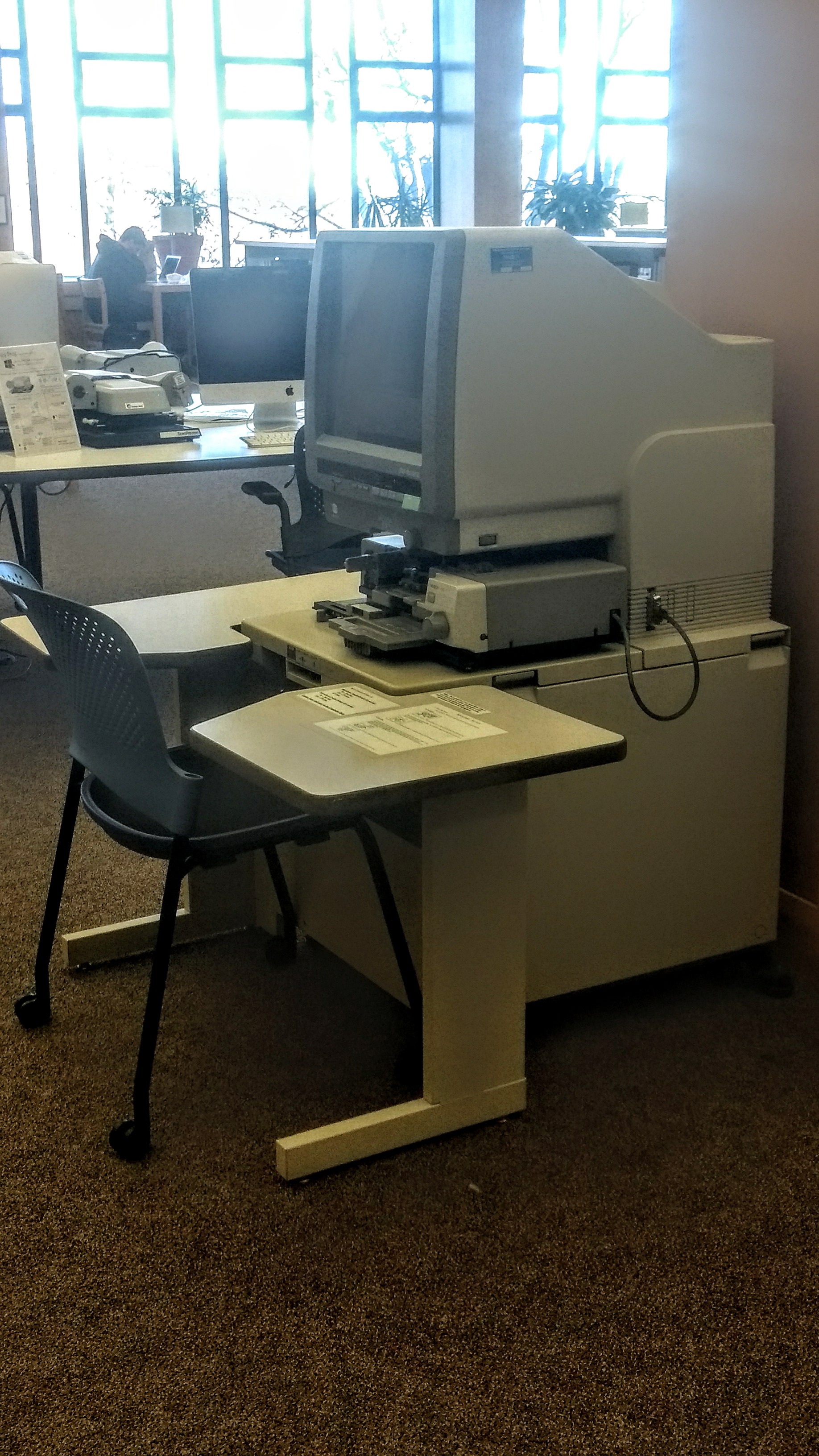
Our dear old T-Rex
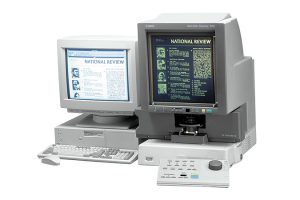
Gemini wasn’t exactly this, but it was a lot like this. (Image from here.

This means that we had to come up with a name for our machine, of course. We’ve been naming our machines for at least the last decade when a former colleague said that our first reader scanner should be called Gemini, because it looked like twins.

Then I said our ancient analog machine should be called T-Rex, because it’s ancient but powerful and a fan favorite.


My first year here, we got a fancy new machine that had a silhouette that reminded me of Yoda meditating on a rock, so we called it Yoda. This machine was also mostly a mystery to all who tried to use it, not least because it had no less than 7 on/off switches. Plus a light made to look like a mouse, but wasn’t a mouse, and was actually completely unnecessary unless you were looking at opaque microcards. But nobody could ever remember that. So being simultaneously powerful and utterly mysterious also fit with its name.
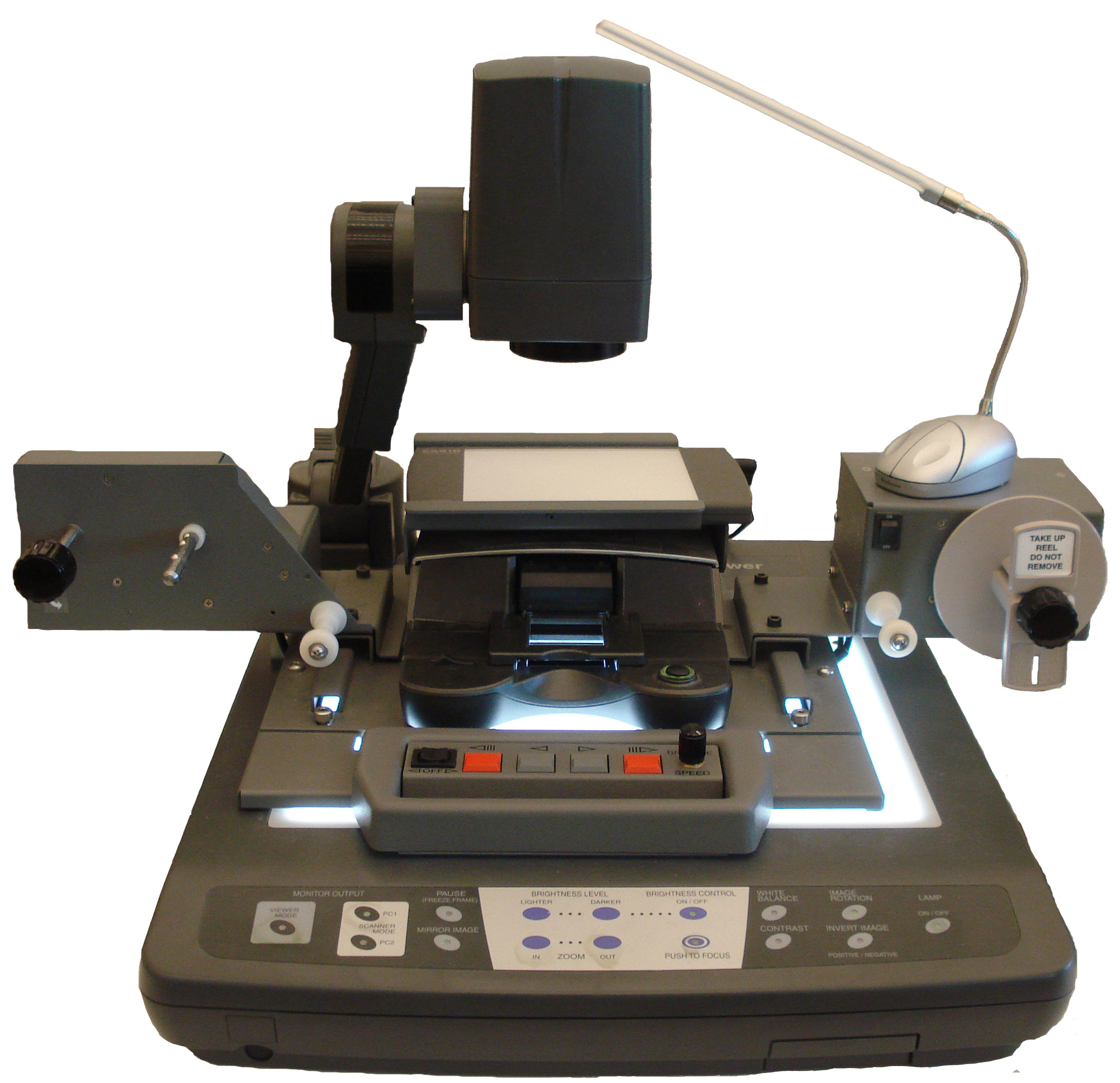
You can see Yoda sitting on a rock, right? Right??

Time passed. At some point Gemini was beyond support. And eventually we got a new machine.

Our next machine reminded one of our campus IT folks of the character Crazy Frog, and the name stuck.
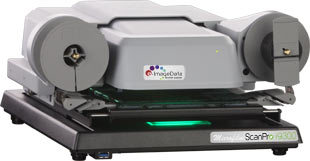
And now, as of last week, we have this new machine which looks almost exactly like Crazy Frog, but it isn’t Crazy Frog, and it will be taking over for both deceased Yoda and (eventually) T-Rex. So we spent some quality time this week naming it, and we ended up merging ideas from another campus IT person and from a librarian in my department. The new name? Yandu-Bot. It’s a robot version of a Yandusaurus. It merges the old and the new. It’s way more automated and powerful than our other machines. And as an added bonus, because it has the letters Y and D in that order in its name, the desktop systems administrator doesn’t have to make any changes to the computer and related systems it’s hooked up to, which all have the letters YD for Yoda.

2 Comments

Result lists as a genre of writing

Idea – by me

I’ve been having a bit of an up-and-down teaching term this Fall — some classes going really well and some falling flat — but one thing that I’ve really enjoyed is that so many of the classes I’m working with are in new subject areas for me, or are taking different approaches than I’ve taken before. It’s felt like everything is new, an experiment, and if I look at it in that light I feel just a little better about the term as a whole.

One recent experiment consisted of actually speaking words in a lower level class that I’ve been mulling over off and on for years but have only ever uttered once in an advanced seminar several years ago. And I think it was ok. I think it was worth the few minutes of time it took, and I’ll think about where I can work it into other teaching I do.

The words? “Result lists are a genre like any other genre of reading. They may look different from tool to tool, but they all conform to certain conventions, and you can read a result list like a type of document, applying genre-specific reading strategies just like you’d approach an article differently than a mystery novel.”

The class I was teaching was of a type that I generally really enjoy: teaching students how to read instrumentally in order to do better research. And we talk about different kinds of reading: skimming, deep reading, and reading instrumentally. In lower level classes this generally involves me passing out a short reading (usually a newspaper or magazine article) and having students work together to generate lists of topics, key terms, and names associated with those topics by reading the article carefully. Sometimes I have them do this with the aid of a worksheet and sometimes I just do it with them on the chalk board.

And this time I added reading result lists as a type of reading that has its own specific place in a research strategy. Result lists come in many forms, but they will all help reveal the range of questions authors seek to answer that involve the search terms you use, patterns in authors or publications that revolve around the terms you used, and clues about the vocabulary of your topic which you can then take note of and use to revise your searches. They are highly condensed, jargonized reference “entries” that teach you a lot about patterns of publication, about vocabulary, and about where you can go next with your searching.

In this particular class I didn’t elaborate on speech genres in general, or explain that they’re “relatively stable types of utterances” that operate within a particular context and reflect “specific conditions and goals” (Bahktin 60). I didn’t even indulge in a geeky digression into the ways that “secondary” speech genres “arise in more complex and comparatively highly developed and organized cultural communication” (Bahktin 61-62). Does this remind you of scholarly communication pathways and norms? Disciplinary discourse conventions? Yeah, me too. But in a 45 minute class with first year, first term students I thought maybe Bahktin was a bridge too far.

Even so, understanding result lists in this way has really helped me, over the years, to get away from the frustration of “failed searches” and become far more comfortable with the idea that spending time opening results here and there and quickly gathering vocabulary and a sense of publishing patterns is one of the quickest ways to arrive at useful results, even if it at first feels like taking detours through a swamp full of weeds. I hope it will help those students, too.

Bakhtin, Mikhail. 1987. “The Problem of Speech Genres.” Speech Genres and Other Late Essays. Edited by Caryl Emerson and Michael Holquist. Translated by Vern W. McGee. Slavic Series. Austin: University of Texas Press. pp. 60-102.

Leave a Comment

A librarian plays with javascript for the first time

A few times this summer my work with libguides left me turning to people for help with what felt like basic stuff, and each time the answer was “Oh, here are 2 lines of javascript that’ll solve your problem.” So I got jealous. I want to be able to know when two lines of javascript will solve all my problems, and what two lines those might be. Plus, I hate bothering busy people for tiny stuff.

Meanwhile, the other librarians and I were trying to figure out a clear and consistent way to link to catalog records from our Book assets in Libguides. Sure, there’s a URL field there, but over and over we’ve seen people think that if the title is a link, that means that the full text is behind the link. So they open the catalog, see what is clearly information about a book, and then proceed to use the catalog’s search bar to “search inside the book.” Then they’re confused when they just get results for more books. So they open their book again, and try it again. Endless frustrating loop. Also, we actually do have quite a few ebooks, so it’s extra confusing when some of those linked book titles go to ebooks and some go to catalog records. Not a great usability scenario.

So I thought “Well, we can just put a little HTML link in the book’s description box that makes it clear that this link, unlike the title link, leads to a catalog record. But 1) writing a bunch of HTML by hand can lead to errors, and worse, 2) not everyone is comfortable writing HTML by hand. But we did really want a second URL field with clarifying language, reserving linked titles for ebooks.

This, then, was the perfect project for me to learn Javascript. What could possibly go wrong? Here are my two methods of teaching myself from scratch:

  1. W3schools (especially fiddling with their “try it” setups to see if I can figure out how and why things work)
  2. Googling everything I want to do, one thing at a time, and hoping someone else on Stackoverflow has asked a similar question, and that whatever answers they got there will work if copied and pasted into my code.

I started thinking I could get away with making a bookmarklet, but since it turns out that browsers generally don’t allow you to access your clipboard except in very limited circumstances, and that many websites (including our catalog and libguides, the only two sites I cared about) don’t let me inject HTML to build a popup form to get around the lack of access to the clipboard, I finally had to admit that a bookmarklet would not work for me.

So then, according to the developers who helped and encouraged me along over on Mokum, it was time to start thinking about coding a browser extension. It took me a couple of days to admit this to myself because it sounded scary and complicated, but eventually I took this tutorial and its sample files by the horns and dived in. Along the way I got valuable hints from a friend to pay attention to the order of operations (at this point that means I just try things in various orders, but some day soon I hope to actually know what I’m doing), and to use the built in “Inspect” console in Chrome to debug the Javascript (which until now I’d only thought about as being a tool for HTML and CSS stuff).

And today, nine days later, I published my extension to Chrome and to Firefox! Now adding links to catalog records is quick and consistent for everyone in my department. (And if you want the unpacked files to mess around with, here you go, though I must warn you that I am NOT an expert so there may be stuff in here to make an expert weep, or laugh. Any and all suggestions for improvement are welcome.)

At this point I’m only just barely good enough to try lots of things in hopes that one of the things will work, and then to move on to the next thing. And I’m still very hampered by only having the vaguest idea what’s possible and (almost more important) what’s impossible. But who knows, maybe sometime soon I’ll have another tedious workflow that I can speed up by getting my computer to do a bunch of the tedious part for me. The world is my oyster!

2 Comments

Custom LibGuides Page Layouts, Terminology, and CSS

As you probably figured out from my last post, it’s been a Libguides kind of summer around here. We updated all our links to our catalog, got things ready to publish the Libguides databases list rather than our old other-CMS databases list, changed all internal links to database lists, migrated from WorldCat on FirstSearch to WorldCat Discovery links, and did the annual (painful) clean-up of the assets inventory (merging duplicate assets, deleting un-mapped assets, fixing wonky assets…).

For me the most fun part, though, was updating the custom page layouts, custom terminology, and custom CSS. And I thought I’d share my work in case it’s useful to others.

Custom Page Layouts

Under Admin > Look & Feel > Page Layout, I’ve customized several of our page types. If you want the code for these just let me know and I’ll share.

Guide pages now don’t display that tab name after the Guide name, plus various small tweaks.

We don’t use the system-generated homepage and instead made a guide to use as a custom home page, entering its URL into the redirect URL spot under “Homepage boxes/Redirect.”

For Subject Pages, I flipped the order of the tabs so that people are presented first with useful databases for the topic and then with useful guides for the topic. And I completely hid the tab for blogs because we don’t have any of those and don’t plan to.

For Database A-Z pages, I changed things up so that our QuestionPoint chat widget could sit in the upper right-hand corner, and to hide elements we didn’t want.

Custom Terminology

I’d thought this was only to set the system language, like “English,” but no, there’s a whole section where you can change system-generated labels for things. Go to Admin > Look & Feel > Language Options, and then click on the Language Customization section. Behold, a whole trove of system language that you can tweak to match your local terminology.

Custom CSS

Here’s my custom CSS as of July 2017. You can feel free to take or modify whatever you like from my style. (If you’ve never done this before, just copy and paste everything in my text document into the code box in Libguides under Admin > Look & Feel > Custom JS/CSS and then delete bits or tinker with bits as you like. I use w3schools with wild abandon as I cobble together my amateur CSS.)

My guiding principles

  • Make it so that the librarians can let the CSS do most of the formatting work for them.
  • Clean, uniform looking lists of databases, assets, system-generated lists (widgets), etc, so that no matter how a librarian decides to add pointers in their guides, things will look relatively uniform.
  • Allow for the flexibility that our librarians really value. We value uniformity when that helps the users and when it helps us re-use each other’s assets, but we value the ability to make guides work for a variety of contexts and not tie one librarian to another librarian’s style (though I’m the CSS overlord, so my style is a little more equal than other people’s styles, I guess).
  • This is also why we have a Style Sheet for librarians who create guides, with the idea that the more specialized your work, the more you can do whatever you want, but if you’re doing stuff that others might want to pull into their own guides, some uniformity is useful. (It’s also a handy place to dump little “how to do this complicated thing” tutorials.)

What my custom style sheet does:

Since the Libguides CSS editor doesn’t seem to allow me to comment out my code, here’s some narration about what my code does.

  • First (from the line starting at “body” to the line starting at “li”), I lay down some ground rules for fonts and colors, especially changing links to be bolded rather than underlined, which worked better in our style.
  • The next several lines make the various kinds of things you can put into a box in libguides conform to the same style rules (so that book elements look similar to database elements or link elements, etc), and also hides some elements that we considered less necessary and more apt to contribute to clutter.
    • Removes bullet points and fiddles with spacing around asset lists and system-generated lists so that they’re all uniform.
    • Unbolds the names of guide owners under guides linked using the “guide list” feature in the add/reorder dropdown.
    • Makes book call numbers italicized
    • Hides ISBNs and publication dates in Book assets
    • Hides “last updated date” and number of views from “guide list” links.
  • The next section deals with the layout of some of the most common elements on research guides, removing shadows from boxes and setting fonts and basic styling for tabs and boxes.
  • The next section governs headings and block quotes – very basic stuff
  • Then comes four lines that clean up the Databases A-Z list, hiding the “share” buttons on database lists and hiding both the automatic search box that appears throughout Libguides and the “search within the databases a-z list” search box. This is because we have YEARS of data from our old cms showing that if there’s a search box on a page that lists databases, people enter search terms into it that make it clear that they think they’re searching within the databases. If they want to find a particular database, they use control-F on the web page instead. There was also an interesting talk at this year’s ACRL where people used eye-tracking software and found that people can’t help themselves — they’re drawn to search boxes. And if there are extra search boxes on the page it’ll just confuse the issue.
  • The .dont-break-out line in the CSS is a thing that librarians can employ if they need to display a very long URL and they want to make sure it won’t bleed out of its box, particularly on smaller screens. I didn’t apply it to the system as a whole because I’m not quite sure what all it’ll mess up, but on our Zotero guide I have to make it easy for people to copy and paste our OpenURL resolver link, and the thing is ridiculously long, and this was the only way to force it to wrap in Chrome. So in a Rich Text content item I wrapped the URL in a div tag that called this special class, thusly:
    And now even in Chrome at very narrow browser widths the URL wraps neatly onto new lines.
  • The remainder of the style sheet changes the way that image gallery boxes display, making things simple and clean, and usually even readable if there’s caption text.

So there you have it. That’s what I’ve been up to in the Look & Feel department this summer.

Leave a Comment

Updating URLs after transitioning to the new Primo interface

If you work at a library that has or soon will be transitioning to the new Primo interface, and if you have research guides or other web pages that link into content from the old interface, read on because you may want to consider doing a URL updating project even though there’s an automatic redirect.

First of all, if you link to searches done in regular Primo (not the journals a-z list), those apparently don’t redirect. If you link to items from regular Primo or to Journals list items or searches, there’s a redirect but it takes a long time to resolve — about 25 seconds in my library’s configurations. Long enough for me to click a link, get a drink of water from the fountain outside my office, come back, and still wait a bit for the screen to load. (Plus it flashes through a couple of weird pages including a “zero results” page that just isn’t true.) And finally, the old Journals list didn’t have an option to search by ISSN, so many results (like if you’re looking for the journal Science) were pretty messy. The new platform does have an ISSN search, which is far more accurate for direct linking.

Given all of this, I’m updating every URL from our libguides to our catalog, both to make it resolve directly to the new interface and to have journals resolve to an ISSN search whenever possible. If you want to do something similar you can follow (or improve upon) my process.

Learn how to distinguish between old an new URLs.

The main distinguishing features of my campus’ configuration is that the old URLs contain /primo_library/ and the new URLs contain /primo-explore/ instead. In addition, there are three sub-types of URLs that might be useful to know:

  1. Primo Query URLs (the ones that probably won’t redirect)
    1. Old: [your institution].com/primo_library/libweb/action/search.do?…
    2. New: [your institution].com/primo-explore/search?…
  2. Primo single record permalinks
    1. Old: [your institution].com/primo-explore/fulldisplay?…
    2. New: [your institution].com/primo_library/libweb/action/display.do?…
  3. Primo Journals A-Z list
    1. Old: [your institution].com/primo_library/libweb/action/dlSearch.do?…
    2. New: [your institution].com/primo-explore/jsearch?…

Pull your list of old URLs

So now you can go into the Search/Replace feature of Libguides and do a search for all content items containing the URL snippet either for all of the old versions, or for each of the three sub-types of the old version, depending on your workflow.

NOTE: You cannot use the Replace feature built into Libguides because the old URLs put search terms at the end of the URL, but the new URLs put the search terms both into the middle and at the end.

So, do your search, and then select all the records Libguides pulls back for your search, and paste them into a spreadsheet. I then delete the messier/unnecessary columns so that I end up with a first column to indicate whether I’ve fixed that URL or not followed by three of the columns that Libguides generated: Asset ID, Asset Type, and Asset Title. (I used Google Sheets for this.)

If you’re like us, you’ll have several hundred links to update, all told. And obviously this will be a lot less painful if you do a project BEFORE starting this project to go through and consolidate multiple copies of links. And unfortunately there’s no automated option to do that consolidation project, either.

Updating Libguides assets

Now the fun part ends and the tedious part begins. Here’s a little screen cast of how I change each link. And if you prefer words, here’s the process:

  1. Have two tabs open: your new Journals A-Z search and the spreadsheet from Libguides.
  2. Click on the link to the Asset ID to open the Libguides record for that asset
  3. Open the asset for editing
  4. Collect the URL and open it in a new tab – you now have two tabs that are “temporary,” the Asset and the Redirected-and-Resolved Primo tab
  5. For journal records, open a record for the correct journal and collect its ISSN
  6. Back in the tab for the Journals search on the new platform, search for that ISSN
  7. Collect the URL from the new platform’s ISSN search and paste it into the Libguides asset’s URL field.
  8. Click “Save” and close the two “temporary” tabs.
  9. Mark the column in your spreadsheet so that you know that this asset has been updated.

For URLs that don’t need any special investigating (figuring out exactly which journal was intended or if there are special limiters invoked in the original Primo search that you need to recreate in the new search, etc) it takes nearly a minute per asset, so it’s definitely a good idea to listen to podcasts or audio books or something while you work your way through the spreadsheet.

Leave a Comment

The Affordable Care Act (aka ObamaCare): The source documents behind the news

The Primary Source Crusader (my own mashup of images)

With accusations flung from both sides of the isle about health care bills and how they they get moved through Congress, I found myself curious about just exactly what went into the creation of the ACA (the Affordable Care Act, aka the Patient Protection and Affordable Care Act, aka ObamaCare).

I’m still working on fleshing this out with links to full text, but I’m ready to share my initial gathering of all the bills, debates, hearings, reports, and presidential documents that ended up creating what we now call ObamaCare.

In this collection, I included the bills themselves and bills that were related (either directly referring to or incorporating substantial wording from each other) and ultimately building on each other until finally the ACA became law, as well as Hearings and Reports that directly related to or mentioned those bills. I also included a few presidential documents that were directly related to health care reform prior to the ACA’s passage, though I have not combed through all speeches and press releases.

I did not include the 60 committee prints that went into the drafting of this law, but if there’s a compelling reason to go back and list those, please let me know. I also stopped including Congressional Research Service Reports that were produced after the bills were finally passed, though CRS of course continues to study issues and impacts of the ACA.

Here is a preview, but if you want to sort and search rather than just scroll, have a look at the full sheet.

Leave a Comment

Best Practices for Groups using Zotero

I was recently asked to write up some best practices for groups using Zotero, and I thought I’d share them here. While the language and specifics of these practices are all Zotero-centric, I’ve done very similar things with Mendeley and EndNote as well, though they don’t have standalone notes, so you have to make a well-named citation and use its notes fields to fulfill similar functions.

First off, it is worth it to pay for storage from Zotero. There are work-arounds using Box, but that adds a layer of complexity that I have seen go wrong when, for example, you have collaborators spread all over the place and not everyone is tech savvy or has library or IT support.

I’ve also seen people register a Zotero account and then share login credentials to that account with a group. This is not a good idea for a bunch of reasons. Everyone should have their own account and then be added to a group library.

With those two things as ground work, here are some things to consider as you launch a group project using Zotero. The larger your group or longer-term your project, the more these practices will matter.

Setting up the structure

  1. Create a space that serves as your “inbox” for new stuff, before it’s processed/corrected/tagged/whatever. That way you can go merrily along collecting collecting collecting, but not mess up the organizational structure or lose your unprocessed stuff in the giant pool of processed stuff. If it were me, I’d make my own personal zotero library into my inbox area, and only move things to the Group library once it had its PDF associated, metadata cleaned up, etc. Alternatively, you could have a tag that you associate with new stuff so that you can gather it all together and process it.
  2. In the main Group library, have a standalone note that describes the workflow of the group and defines how you are using tags, folders, and “related” items in this group. For example, some people use folders for procedural steps and tags for topic categorization, some people do the opposite, and some people do something else entirely. But this note will make it clear to the whole group how folders, tags, and “related” items function in this space.
  3. In the main Group library, have a standalone note for tag definitions. Name it something that will guarantee it’s at the top of an alphabetical list (like _TagDefs). Apply every tag to this note (so that it comes up whenever any tag is selected). In that note, list each of your tags and a brief definition so that everyone on the project knows what it means and how to apply it. Whenever you create a new tag, be sure to update this tag definitions note and then add that tag to the note as well.
  4. In each sub-folder in the Group Library, have a standalone note that describes what that folder is meant for.
  5. If you’re going to use tags systematically, I suggest UNCHECKING the preference that automatically gathers subject headings from databases, because these are all over the place and will clutter up your tag list. All the other check boxes on that main screen of the preferences help, but this one doesn’t unless you really only use one database/catalog and it has good set of subject terms.
  6. Plan on not having too many tags/folders. “Too many” is subjective, of course, but once you get scores of them they become very difficult to scan through and select. They should hit that sweet spot of functioning to gather together useful chunks of items rather than having only 1 or 2 items per tag/folder or having nearly all your items in a tag/folder. Novices to tagging tend to come up with too many, and constantly add new ones, which really doesn’t help with organizing a group library.
  7. It can be useful to have a way of tracking procedures, either using tags or folders. These would be like “needs ILL” or “follow up” (which I use for things where there’s a gold mine of a bibliography that I know I’m going to want to go back to and start looking up and saving relevant items from the references).

Saving/organizing items

  1. Save into your “inbox” space, however you’ve set that up. (Be aware that whatever folder is selected in Zotero, that’s where all your new saved items will go, so check this before going on a saving spree.)
  2. Check all the metadata Zotero pulled in when you save an item. Frequently there are capitalization/spelling/data errors that need to be corrected manually.
  3. If Zotero wasn’t able to pull in the PDF automatically, download and then drag the PDF in (and having the OpenURL resolver set up in preferences can help you with this — and if that didn’t sound like English to you, check out the instructions under “Making the “Library Lookup” option work like the library’s “Find It” button” in the top left-hand box on this guide for an example, though of course Carleton’s URL won’t work for other colleges).
  4. Once you’ve saved and cleaned up your item information, open the list of sub-items (the little triangle next to the item citation in Zotero) and right-click on the PDF, and then select “Rename File from Parent Metadata.” That way the PDF itself will have citation information in its file name, which saves headaches if you download it later on and end up with a million “out.pdf” or “1957ty3593.pdf” files on your computer.
  5. A single item can be saved to more than one sub-folder, which is far better than having multiple copies/versions of a single item.
  6. An often-overlooked function is the “related” function. This can link together versions of the same work, or an item with items it cites/is cited by, etc. In group work this helps other people see the connections that you’ve found between works. (It can be helpful to have a written definition of how people think of “related” so that, for example, someone doesn’t put all the books on cats together as “related” rather than just tagging them with the subject “cats.”)

So basically, the theme of all of this is to make it so that there’s explicit shared understanding of how to use the various functions, and then give every new item the TLC it needs in order to coexist with all the other items.

Have a favorite tip or practice? Leave it in the comments here!

1 Comment

Trump’s Budget Proposal: The source documents behind the news

The Primary Source Crusader (my own mashup of images)

The Trump administration has released its first federal budget proposal, America First: A Budget Blueprint to Make America Great Again. This proposal has sparked considerable controversy, so I got interested in how the federal budget even works. With my standard caveats,* here are some common questions and the source documents that help answer those questions.

It’s called a proposal. How much control does the President actually have over the Federal Budget? And how does that process work?

The History, Art & Archives site from the House of Representatives gives an overview of the “Power of the Purse,” which the Constitution grants primarily to Congress. The House further outlines the Budget Process and provides a timetable for that budget process. This process begins with the President’s budget proposal and proceeds with the Congress proposing appropriations legislation (12 “regular” appropriations bills emanating from 12 sub-committees of the House and Senate Appropriations Committees) which may or may not take the President’s suggestions. Some or all of these bills may be consolidated into an omnibus bill for passage. Appropriations legislation is just like most other legislation in that it must be passed by both the House and the Senate and then signed by the President. The President can veto the bills (in their entirety, not line-item), Congress can override the veto, etc.

In years where they can’t agree by October 1st (frequent) they can pass Continuing Resolutions to keep things funded at current rates until they can make a decision about the future.

The Budget and Accounting Act of 1921 requires the President to submit the initial budget proposal to Congress, and the budget process as a whole is governed by Title 31, Subtitle II, Chapter 11 of the United States Code. Prior to 1974, presidents were able to “impound” funds (not spend them even after they had been budgeted), but due to perceived abuses by Nixon the Congressional Budget and Impoundment Control Act of 1974 reorganized the budgeting process to place more control in Congress’ hands. This, too, has been amended several times, so if you want to read current law you can look at Chapters 17, 17A, and 17B of Title II of the United States Code.

For comparison, you can look back at previous White House budget proposals.

How will I know what Congress’ budget looks like?

You can track the various bills as they appear and move through the budget process. (Remember that Omnibus Bills can gather up many of the smaller bills, so just because a bill didn’t become law by itself doesn’t mean it didn’t become law as part of an omnibus bill.)

What does Trump’s proposal actually propose?

The President’s proposal is available online. Reading it as a message to Congress about this administration’s priorities, the most succinct articulation of Trump’s priorities occurs in the “President’s Message” at the beginning of the document. President Trump entitled this message “America First: Beginning a New Chapter of American Greatness.” Here is an excerpt:

One of the most important ways the Federal Government sets priorities is through the Budget of the United States.

Accordingly, I submit to the Congress this Budget Blueprint to reprioritize Federal spending so that it advances the safety and security of the American people.

Our aim is to meet the simple, but crucial demand of our citizens—a Government that puts the needs of its own people first. When we do that, we will set free the dreams of every American, and we will begin a new chapter of American greatness.

A budget that puts America first must make the safety of our people its number one priority— because without safety, there can be no prosperity.  (page 1)

Note that this proposal does not include everything that will be proposed:

The 2018 Budget is being unveiled sequentially in that this Blueprint provides details only on our discretionary funding proposals. The full Budget that will be released later this spring will include our specific mandatory and tax proposals, as well as a full fiscal path. (page 5)

Additional key statements providing policy guidance to Congress include:

  • “The Federal Government can—and should— operate more effectively, efficiently, and securely.” (page 13)
  • “Each year, however, Federal agencies issue thousands of new regulations that, taken together, impose substantial burdens on American consumers and businesses big and small. These burdens function much like taxes that unnecessarily inhibit growth and employment.”  (page 15)
  • The phrase “private sector” shows up 12 times in the document, signaling an emphasis on moving support for some activities out of the government and into the private sector.

Following these opening sections, the proposal covers 17 major areas of the federal budget. Below I’ve linked to each of those agencies’ budget pages:

When would any changes take place?

Assuming the legislative process wraps up on schedule, the new budget for Fiscal Year 2018 would swing into effect on October 1st, 2017.


Two caveats: 1) Not all knowable things are knowable using official, original published sources, but that’s the limit I’ve set for myself even when that’s inconvenient or frustrating, and 2) I am a librarian trained in tracking down and evaluating sources — nothing more or less than that. I’m doing my best to find the most authoritative version of the primary sources behind the news, and I welcome suggestions and corrections.

Leave a Comment

Steel Made in America: The source documents behind the news

The Primary Source Crusader (my own mashup of images)

I was recently asked about the often-repeated claim that all new oil pipelines will be made with American steel, whether this really meant all new pipelines, and specifically whether it meant the Dakota Access Pipeline and the Keystone XL Pipeline.

Will these specific pipelines be made from American Steel?

As usual, this turned out to be far more complicated than I anticipated. I’d thought it was easy because there’s an Executive Memorandum calling for American-made steel in pipeline construction from January 24th. But it turns out that this memorandum actually calls for the Secretary of Commerce to come up with a plan to use American-made steel “to the extent permitted by law.” Here’s the actual text:

The Secretary of Commerce, in consultation with all relevant executive departments and agencies, shall develop a plan under which all new pipelines, as well as retrofitted, repaired, or expanded pipelines, inside the borders of the United States, including portions of pipelines, use materials and equipment produced in the United States, to the maximum extent possible and to the extent permitted by law. The Secretary shall submit the plan to the President within 180 days of the date of this memorandum.

Meanwhile, the two Executive Memos dealing with the Keystone XL Pipeline and the Dakota Access Pipeline don’t mention American-made steel. And Deputy Press Secretary Sarah Huckabee Sanders said on March 3rd that in fact those two pipelines would not be covered under the American-made steel memo because steel was bought some time ago and is “already literally sitting there.”

Will any pipelines be made from American Steel?

Secretary of Commerce, Wilbur Ross, has to present a plan for making or repairing all new pipelines with American steel “to the extent permitted by law,” so it’s likely there will be pipelines made with American steel. However it turns out that the World Trade Organization has a say in this that complicates things.

Members of the WTO agree to certain fundamental principles, one of which is National Treatment. According to the WTO’s guide, this boils down to the following:

Imported and locally-produced goods should be treated equally — at least after the foreign goods have entered the market. The same should apply to foreign and domestic services, and to foreign and local trademarks, copyrights and patents. This principle of “national treatment” (giving others the same treatment as one’s own nationals) is also found in all the three main WTO agreements (Article 3 of GATT, Article 17 of GATS and Article 3 of TRIPS), although once again the principle is handled slightly differently in each of these.

National treatment only applies once a product, service or item of intellectual property has entered the market. Therefore, charging customs duty on an import is not a violation of national treatment even if locally-produced products are not charged an equivalent tax.

This means that foreign suppliers of goods and services can and do sue if there is preference given to domestic products (assuming equal price and quality) once everything is washing around in the domestic market. Most recently Japan lodged a complaint against India in early January, saying that the “minimum import price” that India imposed on imported iron and steel violates the principle of National Treatment (Article 3.1).

Sometime on or before July 23rd, 2017, we’ll see what the Secretary of Commerce presents as a plan for building pipelines using American-made steel. I’ll update this post as events unfold.


Leave a Comment

Health Care Reform: The source documents behind the news

The Primary Source Crusader (my own mashup of images)

Proponents and opponents alike have been waiting to hear what the plan will be for health care once the Affordable Care Act is repealed. There have also been a lot of statistics thrown around in the course of the public discussion on this topic, and a few people have asked me where some of the numbers they’re hearing are coming from.

Last updated: 6/12/2017

H.R.1628

First, the World’s Best Healthcare Act of 2017 is indeed a real bill, but it is not the same bill that people have been anticipating and debating for the last couple months. It’s the 2017 version of a 2016 bill that never made it out of committee. When the bill we’ve been expecting gets an actual number, I’ll add it here. Update 3/25/2017: The “real” bill under discussion was H.R.1628. and as of 3/24/2017 the bill has been pulled from consideration. The bill was pulled “pursuant to clause 1(c) of Rule 19,” which states that “when the previous question is operating to adoption or passage of a measure pursuant to a special order of business, the Chair may postpone further consideration of such measure in the House to such time as may be designated by the Speaker” (see the House rules, page 34). I wonder where this leaves the previous Executive Order (predicated on the idea of prompt repeal of the ACA) and its encouragement for states and companies to play fast and lose with ACA rules.

The “real” health care plan, called the American Health Care Act, was originally available to us in the form of two committee prints:

It was pulled from consideration on 3/24/2017, but then ultimately passed the House on 5/4/2017. The Congressional Budget Office released their report on the ultimate economic impact of this version of the bill.

The Senate has said that they do not plan to move forward with this bill, and there are reports that they have their own bill but that it’s still secret.

For comparison, here’s the Patient Protection and Affordable Care Act from 2010 (also known as Obamacare). And here are all the health-related bills introduced by the current congress.

What will things cost under the new plan? (section added 3/14/2017)

Update 3/14/2017: The Congressional Budget Office has released its official assessment of the American Health Care Act. This includes estimates of future costs, future numbers of insured Americans, and future market stability. A couple of questions I have about this report are:

  • Because it was deemed “impracticable” the requirement to investigate the macroeconomic impact of the bill is no longer required (see page 4 of the report, which refers to section 402 of the Congressional Budget Act of 1974 – page 40). So that means that a couple of the major questions I had (effects on jobs, effects on uncompensated care ripples) aren’t covered in this report.
  • The “Basis of Estimate” section includes:
    • Effects of Repealing Mandate Penalties (page 8)
    • Major Changes to Medicaid (pages 8-10)
    • Changes to Subsidies and Market Rules for Nongroup Health Insurance Before 2020 (pages 10-13) — employer-based insurance is a group insurance, so this is about individual insurance
    • Changes to Subsidies and Market Rules for Nongroup Health Insurance Beginning in 2020 (pages 13-18)
    • Market Stability (pages 18-19)
    • Other Budgetary Effects of Health Insurance Coverage Provisions (pages 19)
  • The “Net Effects on Health Insurance Coverage” (pages 19-21) section starts “CBO and JCT expect that under the legislation, the number of people without health insurance coverage would increase but that the increase would be limited initially, because insurers have already set their premiums for the current year and many people have already made their enrollment decisions for the year.”
  • The “Net Effects on Health Insurance Premiums” (pages 21-22) section starts: “The legislation would tend to increase average premiums in the nongroup market prior to 2020 and lower average premiums thereafter, relative to the outcomes under current law.” Prior to 2020 premiums could go up by 15-20%, and after 2020 premiums could go down for the younger population, but go up by an additional 20-25% for people over 65.
  • Page 22 includes the “Revenue Effects of Other Provisions,”
  • “Direct Spending Effects of Other Provisions” includes
    • “Prevention and Public Health Fun,” and Community Health Center Programs” sections (page 22)
    • The “Provisions Affecting Planned Parenthood” section (page 23)
    • “Repeal of Medicaid Provisions,” “Repeal of Reductions to Allotments for Disproportionate Share Hospitals,” “Safety Net Funding for States That Did Not Expand Medicaid,” and “Reductions to States’ Medicaid Costs.” (pages 23-24)
  • “CBO has not completed an estimate of the potential impact of the legislation on discretionary spending, which would be subject to future appropriation action.” (page 25)
  • Pages 25-26 lay out “Uncertainty surrounding the estimates”
  • The “Increase in Long-Term Direct Spending and Deficits” section is one sentence long: “CBO estimates that enacting the legislation would not increase net direct spending or on-budget deficits by more than $5 billion in any of the four consecutive 10-year periods beginning in 2027” (page 26).
  • The final page of content (page 27) analyzes “Mandates on State, Local, and Tribal Governments” and “Mandates on the Private Sector,” which measures new legislation against the Unfunded Mandates Reform Act of 1995.
  • All the charts and tables are at the end of the document, pages 29-37. Most of these provide costs over time.

The CBO has written about its methodology on this topic in some detail.

What about the statistics and numbers that have been tossed around lately? Well…

I wrote previously about data that the federal government released about historical and projected health care spending, including both the price tags for the government and for individuals.

Many state senators and representatives have been talking about numbers from their own states, though, so what about the more local numbers? The people who have asked me about these numbers have been interested in Minnesota information, so that’s what I’ll present here, but each state will have something similar. If these numbers look useful to you and you want to know about a state other than Minnesota, the strategies I use for most of this kind of work should work for you. Look especially for state departments of commerce and of health.

Two collections of data and statistics that might be useful to you regardless of state are:

  • SHADAC – State Health Access Data Assistance Center
    In addition to their useful reports, their data center lets you build your own charts based on various official sources, and each chart will tell you which group or agency first published the data so that you can track that group or agency down to see more detail.
  • If you have access to something like ProQuest Statistical Insight, you can find federal and local government information there as well as industry reports that are hard or impossible to find other places.

And for Minnesota, here are some of the reports that answer the major questions I’ve heard:

  • MN Department of Commerce: 2016 Rate Summary
    This includes such things as:

    • Includes percentages of people in the individual market (the marketplaces for ACA plans) vs other types of plans.
    • Which companies participate in the health care market in the state (and you can also see their rate filings individually here) and how many options are available in each county of the state.
    • What the essential health benefits are that are required of every company
    • And some basic statistics on health care rates (this one does not include annual out-of-pocket numbers, but the next link link does)
  • Minnesota Department of Health: Minnesota Health Care Markets Chartbook
    This is a collection of several reports, and they include such things as:

    • Total health care spending by source and by uses of funds.
    • Comparisons of state to national trends.
    • Trends in health care premiums, deductibles, and out-of-pocket expenses, overall and by type of insurance
    • Variations in coverage and costs for three groups: employment-based insurance, small group insurance, and individual insurance.
    • Amount of competition in the health care market by region.
    • Characteristics of those who have no insurance and what the safety net for those people looks like (including a spreadsheet of uncompensated care.
    • Service availability in the different regions of the state.
    • And state-wide service quality reports.
  • Minnesota Department of Health: Health Economics Program
    Does research on and produces reports about health care markets in MN.
  • Minnesota Department of Human Services: Health care programs – initiatives, reports, and advisory committees.
1 Comment
css.php